A TRACS voucher submission is a monthly, one-time voucher request for assistance payments (MAT30) that contains the following information:
In other words, a TRACS voucher submission is how much money your HA is requesting for the month to fund your Section 8 Project-Based units, and the amount is calculated from your gathered tenant eTrans records.
Creating a TRACS voucher submission involves 5 main steps:
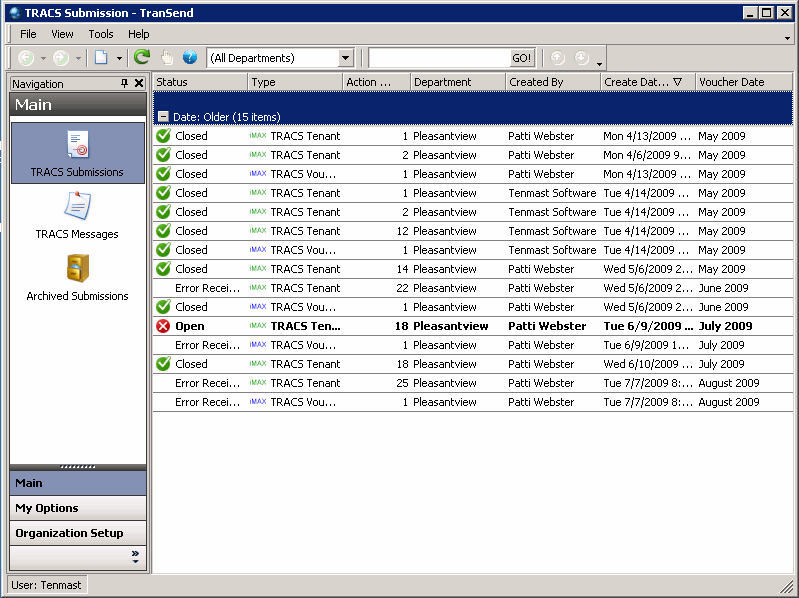
TRACS Submission page
 on the toolbar and select “TRACS Voucher Submission” from the menu that appears. A New TRACS Voucher Submission window opens:

New TRACS Voucher Submission window
Note: If you want to resubmit a voucher already accepted by TRACS, you must first reject the voucher in the Occupancy and Rent Calculation program. For more information, please see the WinTen² Resubmitting a Voucher Accepted by TRACS Quick Start Guide.
Note: You may decide in your setup options whether or not you want to wait to send a submission after validation of the records.

TRACS Voucher Submission page
Note: Depending on your setup options, the TRACS Voucher Submission page may also automatically open immediately after clicking OK to gather and create the tenant submission.
Note: Associated with every voucher submission record is a submission file that is saved as a history file in the database. As long as you have the record in the database, you will always have a copy of the data to make the file.
Hint: The Status tab of the TRACS Voucher Submission page will offer more information on submission statuses. The “Sent” status indicates when a submission is sent from TranSend to iMAX, either automatically or manually marked as sent. The Occupancy and Rent Calculation program will also update all sent eTrans records with a “Sent” status. The “Waiting for Results” status indicates when a “Sent” submission is recognized by the Tenmast server and the server then connects with iMAX to check for results. the “Error Receiving” status indicates if a problem occurred when the Tenmast server tries to connect with iMAX. Usually, this status is received because of user login or security errors, for example, if the user changed their password in WASS/REAC and didn’t update their info in TranSend (My Options > Logins). The “Error Sending” status indicates if a problem occurred when the Tenmast server tries to send the submission to iMAX. This also is usually received if there are user login or security errors. The “Rejected” status indicates that an error was found in the format of the file sent to iMAX.